Saving and reusing models
Persisting a trained model and loading it back later — with confidence that variables map to rasters correctly — is what enables collaboration, re-projection onto updated environmental data, and long-term reproducibility of published QMaxent results.
Saving a trained model
Every successful Maxent run writes a model.pkl file to the path you
specified on the ② Parameters tab (default
<project>/qmaxent_output/model.pkl). This is a Python pickle of the
trained elapid.MaxentModel instance — it carries:
- The fitted regularized-likelihood coefficients
- The complete list of variable names (in order)
- For each variable: type (
continuous/categorical), training data range (continuous) or class set (categorical) - The full set of hyperparameters (feature classes, RM, CV scheme, random seeds)
- A QMaxent build-version stamp
Treat the .pkl as the canonical record of the trained model.
Distribute it alongside the results.xlsx workbook when sharing with
collaborators or publishing supplementary material — that is the pair
of files Araújo et al. 2019 cite as the minimum
reproducibility unit for a published SDM.
Reloading a saved model
On the ① Data tab, click Load existing model (.pkl)… and select the saved file. QMaxent reads the variable list out of the pickle and opens a variable-mapping dialog:
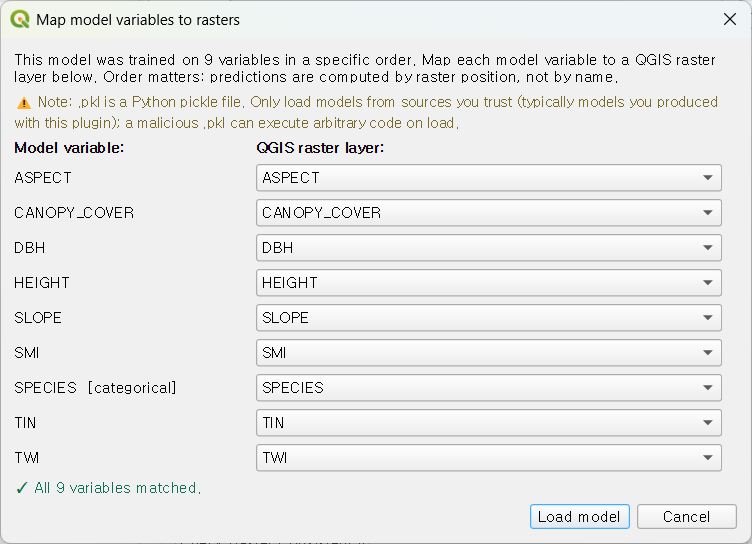
The dialog has one row per saved variable. For each row, QMaxent picks
a default raster from the current QGIS project by matching variable
names to layer names. When the names match exactly, the dialog is just
a confirmation step. When they differ, the dialog forces an explicit
mapping — the only way to load a .pkl whose variable names do not
match the current naming convention is to consciously re-state which
raster maps to which saved variable.
This safeguard prevents the silent ordering errors that have been documented as a recurring source of "but it worked yesterday" bugs in collaborative SDM projects.
The variable-mapping dialog in detail
The dialog renders three columns:
- Saved variable name — read from the pickle, not editable.
- Type —
continuousorcategorical, also from the pickle. A variable saved as categorical can only be mapped to a raster the current project has marked as categorical. - Mapped raster — a drop-down listing the rasters in the current project. Pick one for each row.
A footer status line reads 0 of N mapped and updates live as you
populate the drop-downs. The OK button enables only when all rows
are mapped.
After confirmation, QMaxent rewires the dock as if you had just trained the model fresh — the ③ Training tab is skipped and ④ Results is enabled directly. You can immediately run a spatial projection or extract priority sites against the new raster stack.
Re-projecting onto an updated raster stack
The most common reason to reload a model is to apply it to a more recent or higher-resolution version of the same environmental layers without re-fitting. Because re-fitting on different rasters would produce a different model, this is the only correct way to ask "what does the original model predict about the new data?".
The workflow:
- Train the model once on the original rasters; save
model.pkl. - Load the new raster stack into QGIS.
- Load existing model (.pkl)…, map saved variables to the new rasters in the dialog, click OK.
- Switch to ④ Results → Spatial Projection and run.
The preflight dialog will flag any extrapolation introduced by the new data — particularly important when the new rasters extend the geographic extent or include time periods outside the original training range.
Security note on Python pickle files
.pkl files are executable Python bytecode. Loading a malicious
.pkl can run arbitrary code on your machine. Only load .pkl files
that you produced yourself or that come from trusted collaborators.
QMaxent has no way to verify the provenance of a third-party .pkl
beyond what Python's pickle module itself does (which is nothing).
For published QMaxent results, the safe pattern is:
- Distribute the
model.pklalongside theresults.xlsxworkbook so reviewers have the deterministic seed, hyperparameters, and inputs needed to re-train an equivalent model from scratch if they prefer not to load the pickle. - Sign the
.pklwith a SHA-256 hash in your supplementary materials.
Next
The companion document is Exporting results,
which describes the multi-sheet XLSX workbook that ships alongside
every model.pkl.